
About the Conduit® AP 300
Conduit AP 300 Series (MTCAP3) securely connects thousands of LoRaWAN® wireless IoT sensors to the cloud using the LoRaWAN® protocol. It expands LoRa network coverage to difficult to reach areas and is capable of packet forwarding user data between LoRa end devices and a centrally located network server on the cloud, in a data center, or a public network. The Conduit AP Access Point packet forwarding gateway offers Ethernet, Wi-Fi, and Cellular Wide Area Networks seamless connectivity options to connect to Cloud based applications in centrally located data centers.
In the Box
Some options don't include all of the items shown below. Go to https://multitech.com/all-products/cellular/cellular-gateways/conduit-ap-300-series/#models.
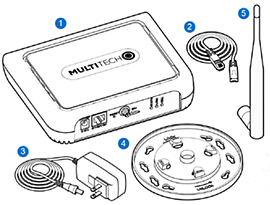
| Item | Description | Quantity |
|---|---|---|
| 1 | Conduit AP Access Point | 1 |
| 2 | RJ45 Ethernet cable | 1 |
| 3 | 5 Volt, 2.5 Amp power supply | 1 |
| 4 | Mounting bracket | 1 |
| 5 | LoRa antenna (models with external antenna only) | 1 |
| 6 | Mounting feet set (not shown) | 1 |
| 7 | Quick-start card (not shown) | 1 |
MTCAP3 Ordering Options
To find information about ordering options, go to https://multitech.com/all-products/cellular/cellular-gateways/conduit-ap-300-series/#models.
Required Tools
The following tools are only required if mounting the device:
- Four #6 (3.5mm) screws with anchors (not provided)
- Screwdriver
- Drill
Getting Started
Setting Up Your Credentials (Commissioning) for mPower
The first time the device powers up, it goes into commissioning mode. The system requires you to set up an administrative user. To do this:
- Open a browser on your computer and enter the default IP address in the URL
field, 192.168.2.1. Most browsers display a warning about HTTP addresses
being unsafe because of a self-signed certificate:
- For Edge, click Advanced and then Continue to 192.168.2.1.
- For Firefox, click Advanced and then click Accept the Risk and Continue.
- For Chrome, click Advanced and then Continue to 192.168.2.1 (unsafe).
- Enter a username for the administrative user. Click OK. Follow on screen instructions for usernames.
- Enter a password and click OK. Follow on screen instructions for a secure password.
- Enter the password again to confirm. Click OK.
- Log into the device using the new username and password.
The First-Time Setup Wizard appears.
mPower Models First-Time Setup
If your device uses the mPower platform, refer to First-Time Setup in the mPower Software Guide for details. It is also available through your model's page at https://multitech.com/all-products/cellular/cellular-gateways/conduit-ap-300-series/.
Connecting with LoRaWAN End Devices
For help connecting your device with LoRaWAN end devices, refer to Application Notes at https://multitech.com/all-products/cellular/cellular-gateways/conduit-ap-300-series/.
mLinux Models
If your device uses the mLinux platform, getting started information is at http://www.multitech.net/developer/software/mlinux/getting-started-with-conduit-mlinux/.
Commissioning Mode
The Conduit® AP 300 ships in what is called Commissioning Mode. As soon as the Conduit® AP 300 is reset to factory defaults or right after the manufacturing process is complete, the system is in Commissioning Mode.
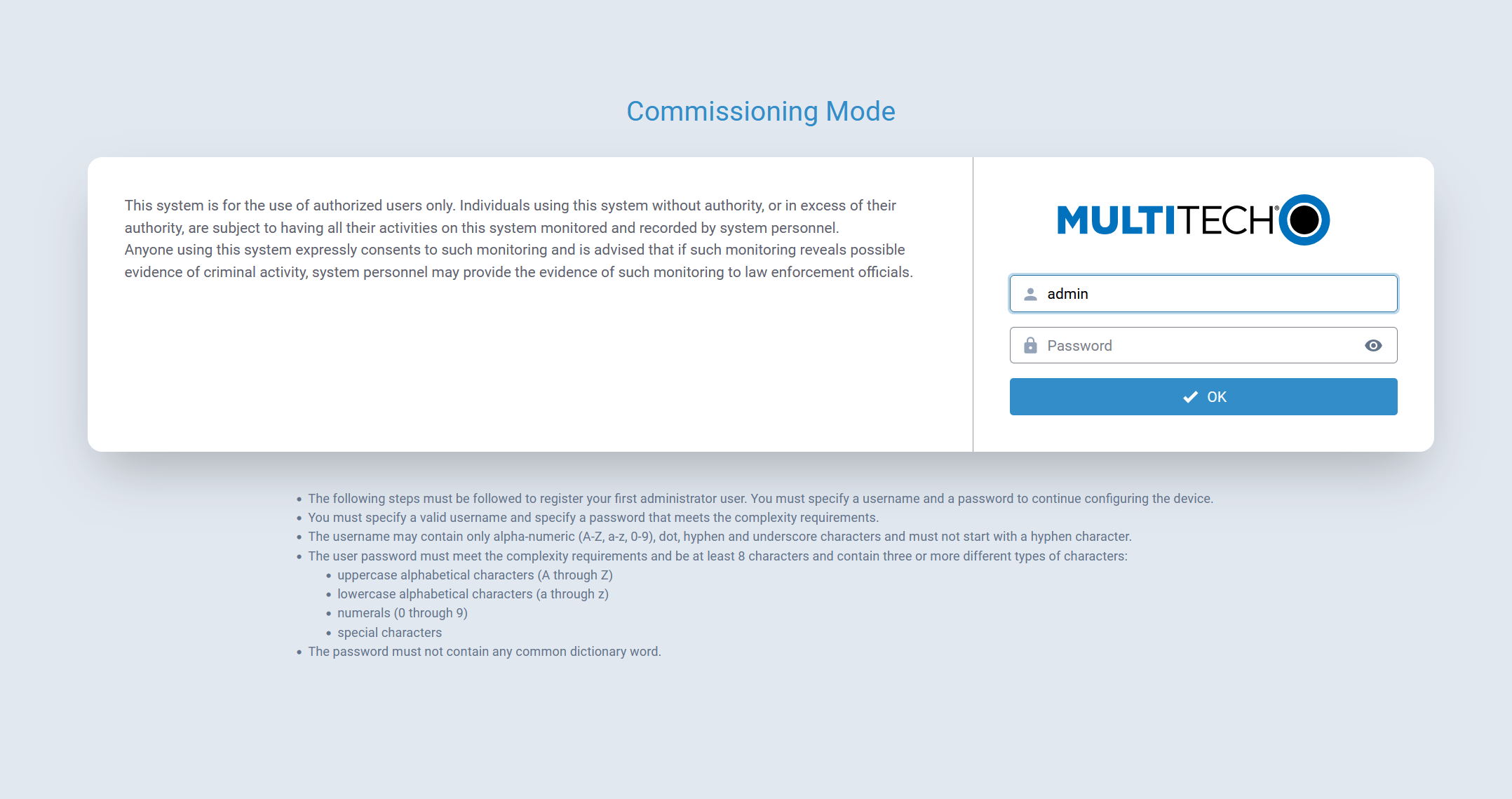
Using ZeroTouch functionality, the system automatically attempts to connect to MT Cloud Device Manager as soon as there is an internet connection. For the first 10 minutes, the device check-in interval is every 3 minutes. After this initial period, the device resumed normal operation and uses the configured check-in interval.
The ETH0/LAN interface is configured with an IP of 192.168.2.1 and a netmask of 255.255.255.0.
Before proceeding, an Administrative User must be configured.
Configure the Administrative User
Perform the following procedure to create and configure the Administrative User:
Password Requirements Overview
- During Commissioning Mode, the minimum password length is 8 characters.
- After commissioning is complete and an Administrative User is created:
- The minimum password length for all new users is 15 characters.
- The minimum password length for any password change, including changes to the Administrative User’s own password, is 15 characters.
Note: These requirements align with NIST SP 800-63B guidance for single-factor authentication. - The minimum password length can be viewed or modified on the Password Complexity Rules configuration page.
- Devices upgraded from a previous release retain their existing password rules until the password complexity rules are manually changed.
Procedure
- Open a browser and enter the default IP address in the URL field,
192.168.2.1. Most browsers display a warning about HTTP addresses
being unsafe because of a self-signed certificate:
- For Edge, click Advanced and then Continue to 192.168.2.1.
- For Firefox, click Advanced and then click Accept the Risk and Continue.
- For Chrome, click Advanced and then Continue to 192.168.2.1 (unsafe).
- Enter a username for the Administrative User. Click OK. Follow on-screen instructions for usernames.
- Enter a password and click OK. Follow on screen instructions for a secure password.
- Enter the password again to confirm. Click OK.
- Log in to the Conduit® AP 300 using the new username and password.
The First-Time Setup Wizard launches.
First Time Setup Wizard
- System date and time
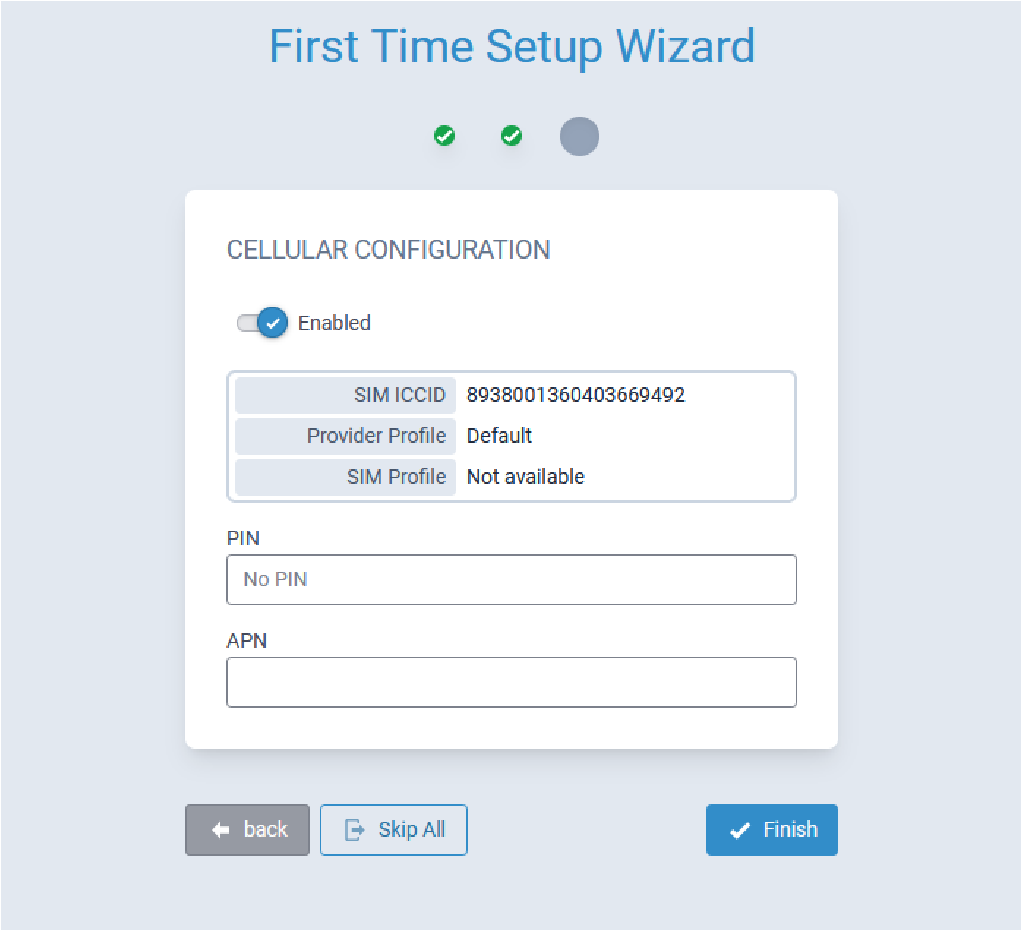
- Cellular connectivity
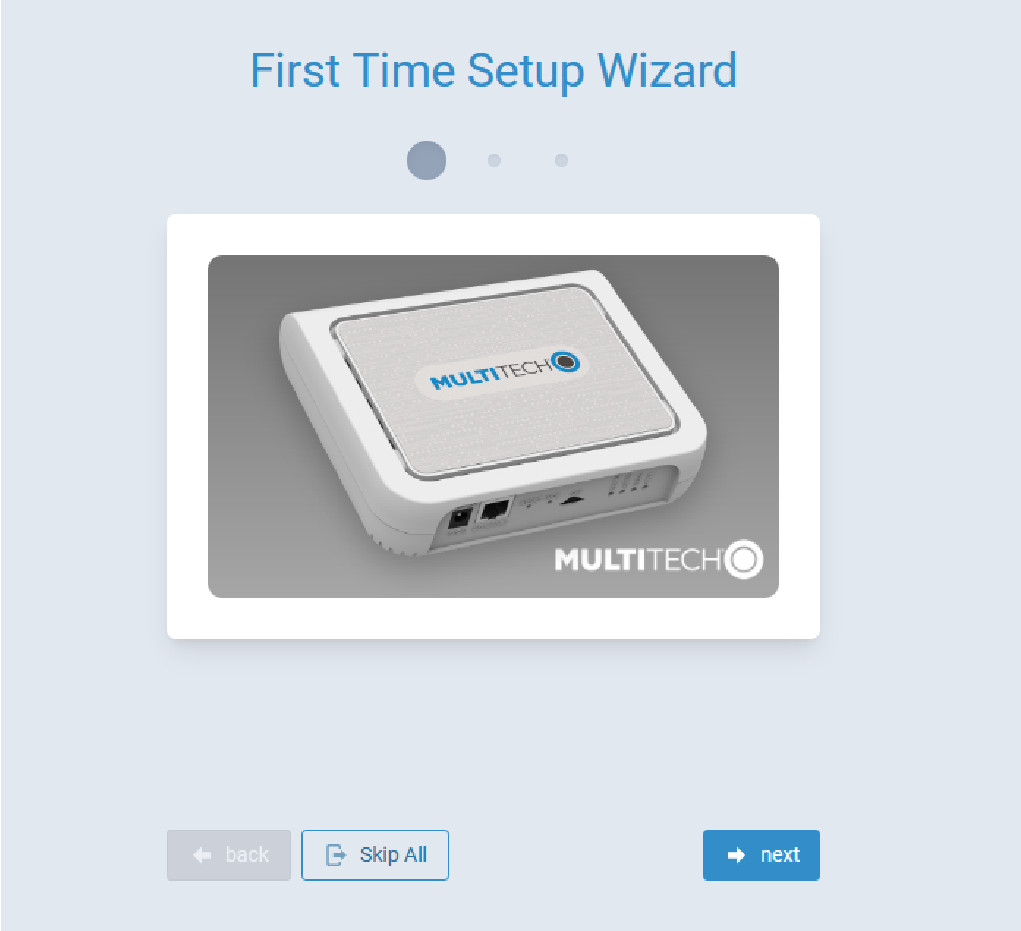
Click Next to continue configuring the Conduit® AP 300.
Configure Network Router Mode
Perform the following procedure to configure the Conduit® AP 300 as a Network Router:
- Configure Date & Time and Time Zone to reflect the Conduit® AP 300's location.

- Click Next. Note: If the Conduit® AP 300 is not equipped with a radio modem (i.e., does not support Cellular operation,) click Finish.
- Configure PIN and APN if required.
- Click Finish.
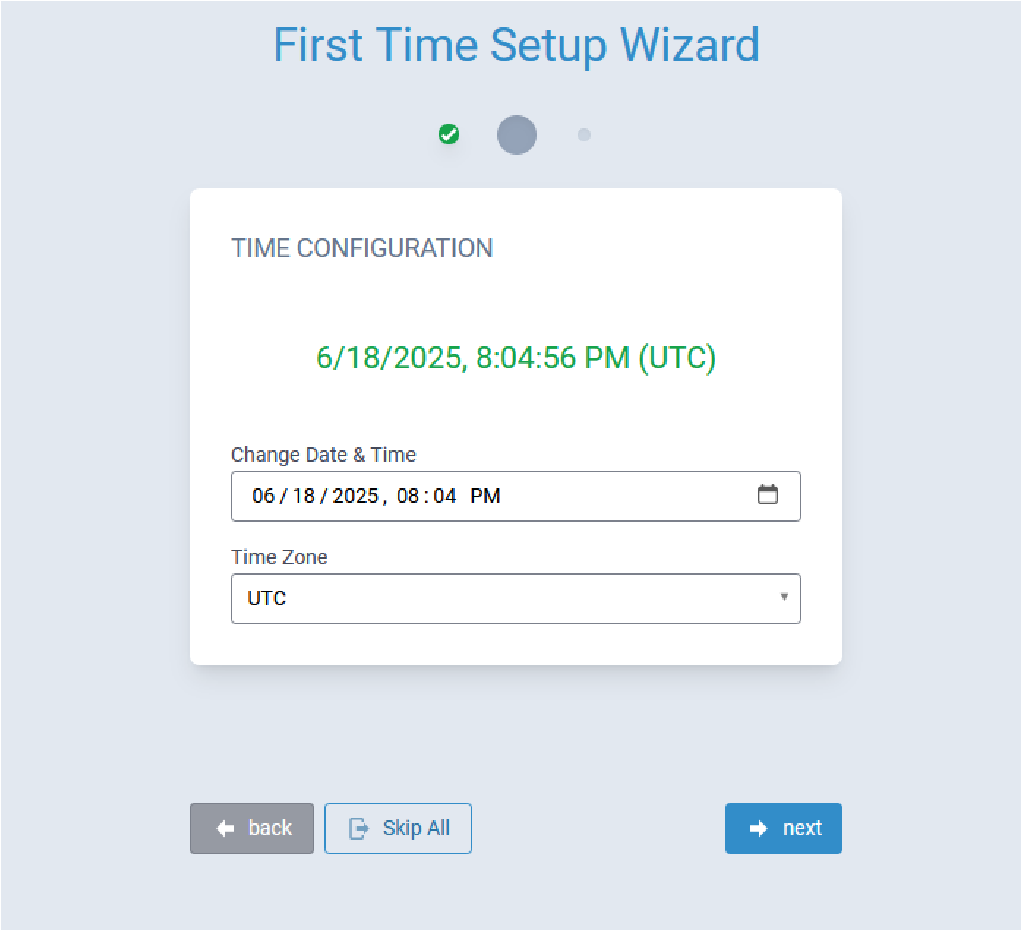
Commissioning an Ethernet-Only MTCAP3
Network Configuration
The Ethernet interface on MTCAP3 (without cellular) operates as a DHCP client, meaning it does not use a predictable static IP (such as 192.168.2.1). Upon connection to a network, the device will request an IP from a DHCP server.
Locating the Device's IP Address
The assigned IP can typically be found using one of the following methods:
- DHCP Server Logs - most IT departments can retrieve the IP via MAC address or hostname (mtcap3-<serial_number>).
- Network Scanning Tools - utilities such as ARP, nmap, or similar tools may help identify the device’s IP.
Connecting to the Device
Once you’ve identified the assigned IP, you can access the device API or Web UI through that IP address in a browser.
Troubleshoot Connectivity
Depending on your connection method, reference the following troubleshooting sections as needed.
Troubleshoot Cellular Connection
- Verify you connected the right power supply correctly.
- Verify you connected the cellular antenna properly, if applicable.
- Verify you inserted the SIM card properly.
- Verify you activated the SIM card and have an active data plan. If not, please contact your SIM provider.
- Ask your SIM provider for an APN, a PIN or a username and password if you need one to connect to a cellular network.
- Verify the cellular signal and network are available at your device setup location.
- Access mPower to check cellular status and perform debugging. Our support team can assist you with this, if needed.
Troubleshooting Ethernet Connection
- You’ll need to connect your device to a computer for local configuration. Connect an Ethernet cable to the Conduit AP 300 Ethernet port and your computer. Ensure the computer either uses DHCP-assigned IP address, or static IP address 192.168.2.1 / mask 255.255.255.0 / gateway 192.168.2.1 / DNS 8.8.8.8 & 1.1.1.1. Open your computer browser, go to https://192.168.2.1 and follow on-screen instructions.
- If the Status and/or Cell LEDs are solid, it means the device is still booting up, which takes up to 5 min.
- Please call support if you need assistance: +1 763-717-5863
Onboard the Device
Create An MT Cloud Device Manager Account
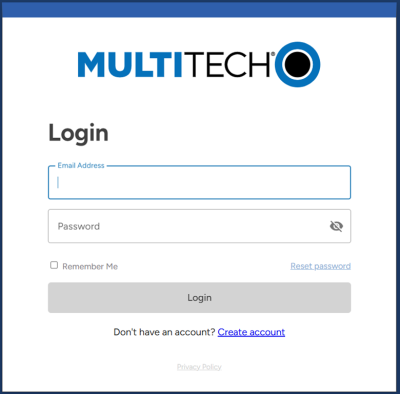
- Go to https://cloud.multitech.com/ in
your browser to start the device onboarding process.Note: If you already have an account, log in to the account using your existing credentials and proceed to Add the Device to Your MT Cloud Device Manger Account. Otherwise, proceed to the next step.

- Select Create account.
- Verify your email address:
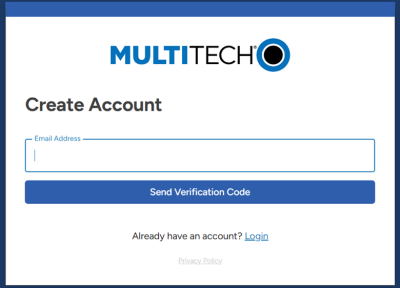
- Enter your email address and select Send Verification
Code.Note: MultiTech recommends using your work email so that future shipments can be added to this account automatically.
- Check your email for a message from noreply@multitech.com with a
verification code.Note: If you don't see an email, check your junk or spam folder.
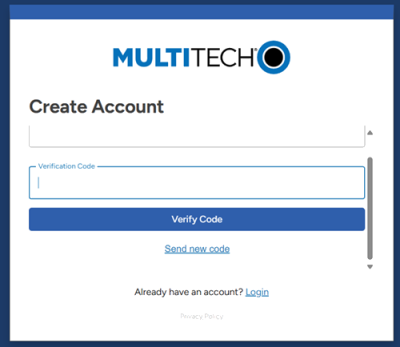
- Enter the code in the Verification Code field and
select Verify Code.Note: If you did not receive the code, select Send new code.
- Enter your email address and select Send Verification
Code.
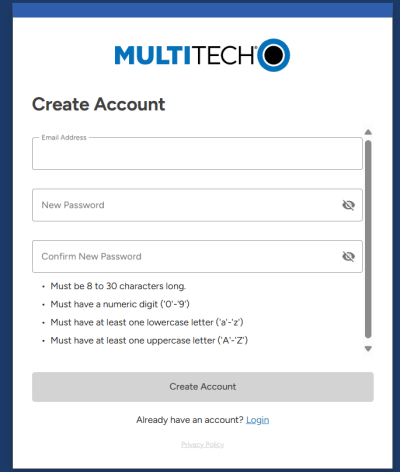
- Enter and confirm a new password, then select Create
Account.
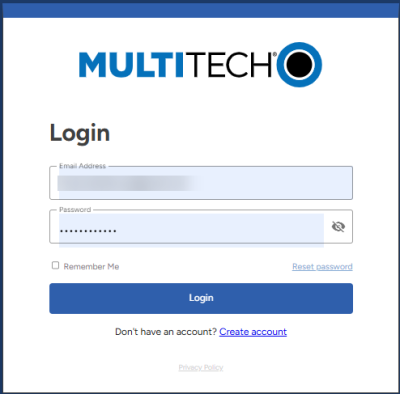
- Enter your credentials and select Login.
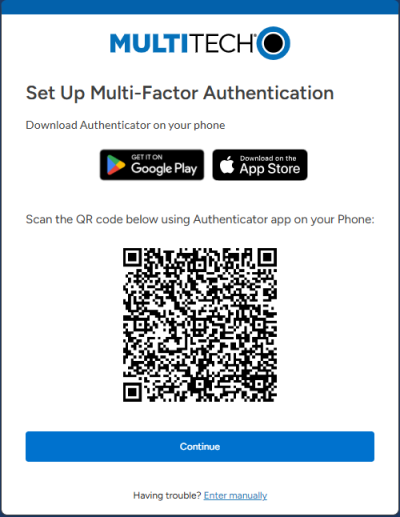
- Set up Multi-Factor Authentication:
- Download the Microsoft Authenticator or Google Authenticator app on your
phone.
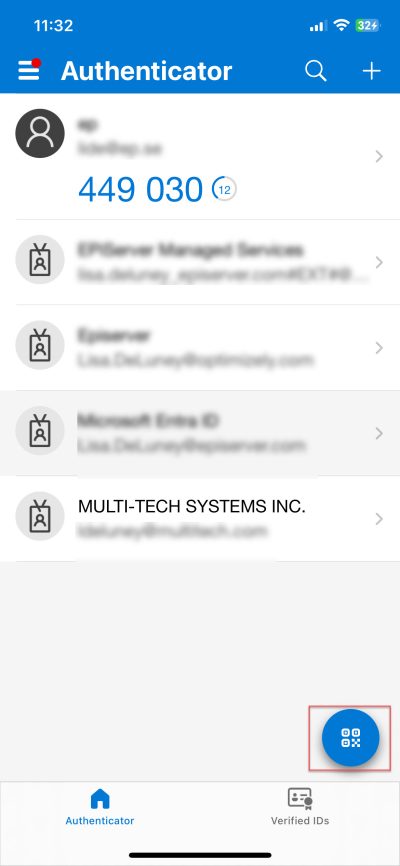
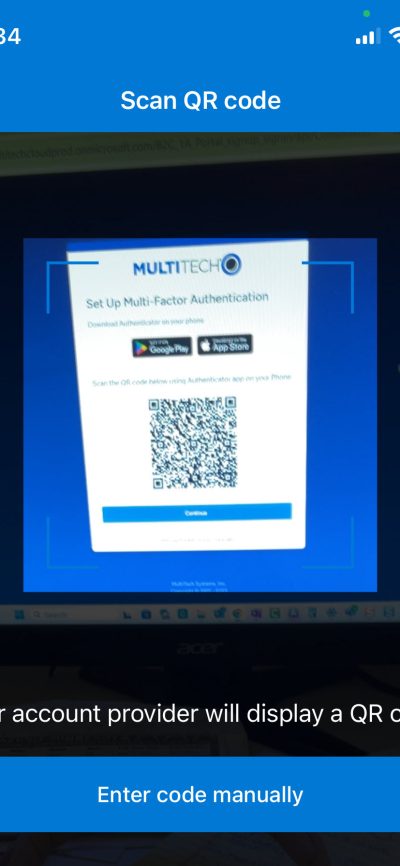
- Open the Authenticator app and select the QR code icon.
- Scan the QR code.
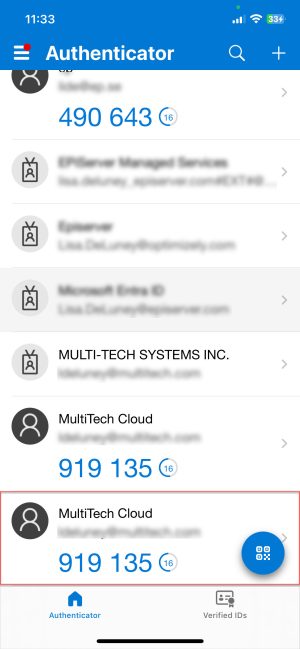
The MultiTech Cloud account is added to the Authenticator list.
- On the Set Up Multi-Factor Authentication dialog, select Continue.
- Download the Microsoft Authenticator or Google Authenticator app on your
phone.
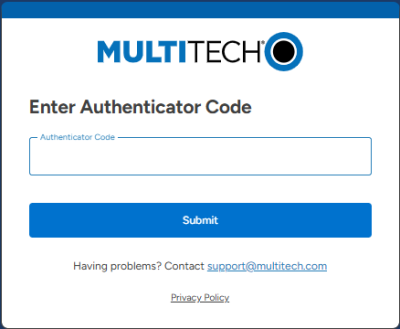
- On the Enter Authenticator Code dialog, enter the Authentication Code for MultiTech
Cloud, then select Submit.
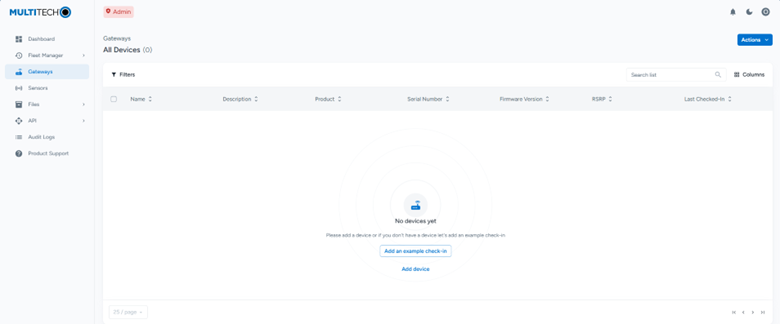
Once you are signed in to your MT Cloud Device Manager account, the Gateways page displays similar to this example image.
Add the Device to Your MT Cloud Device Manger Account
-
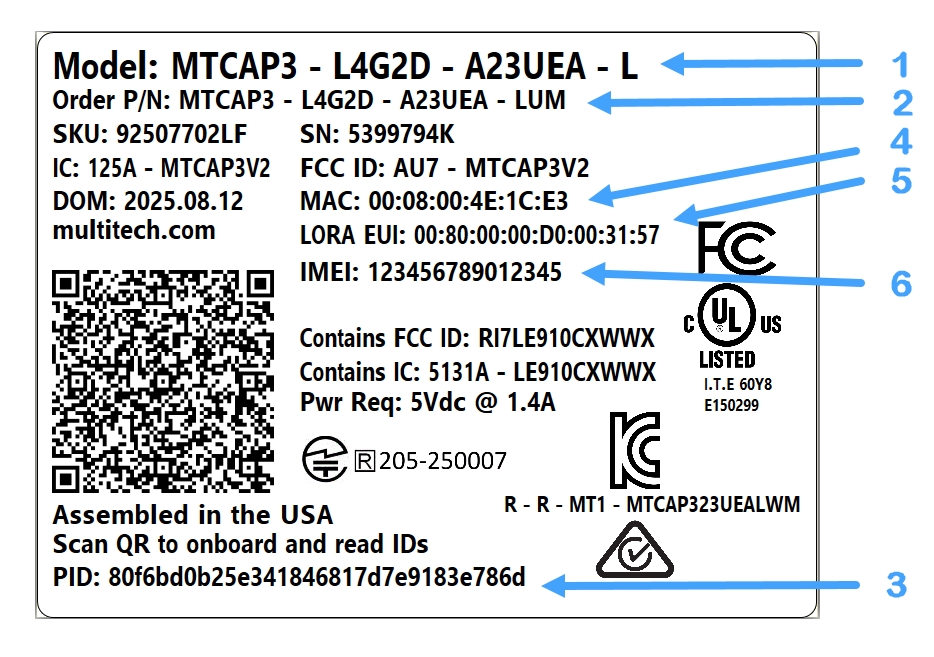
Using a smartphone camera, scan the QR code to onboard and read IDs.
- MultiTech model identification
- MultiTech ordering part number
- PID (provisioning ID)
- Ethernet MAC address
- Device node number
- IMEI (international mobile equipment identity) (cellular models only)
-
Click cloud.multitech.com on your smartphone and follow the instructions to sign
in to your account.
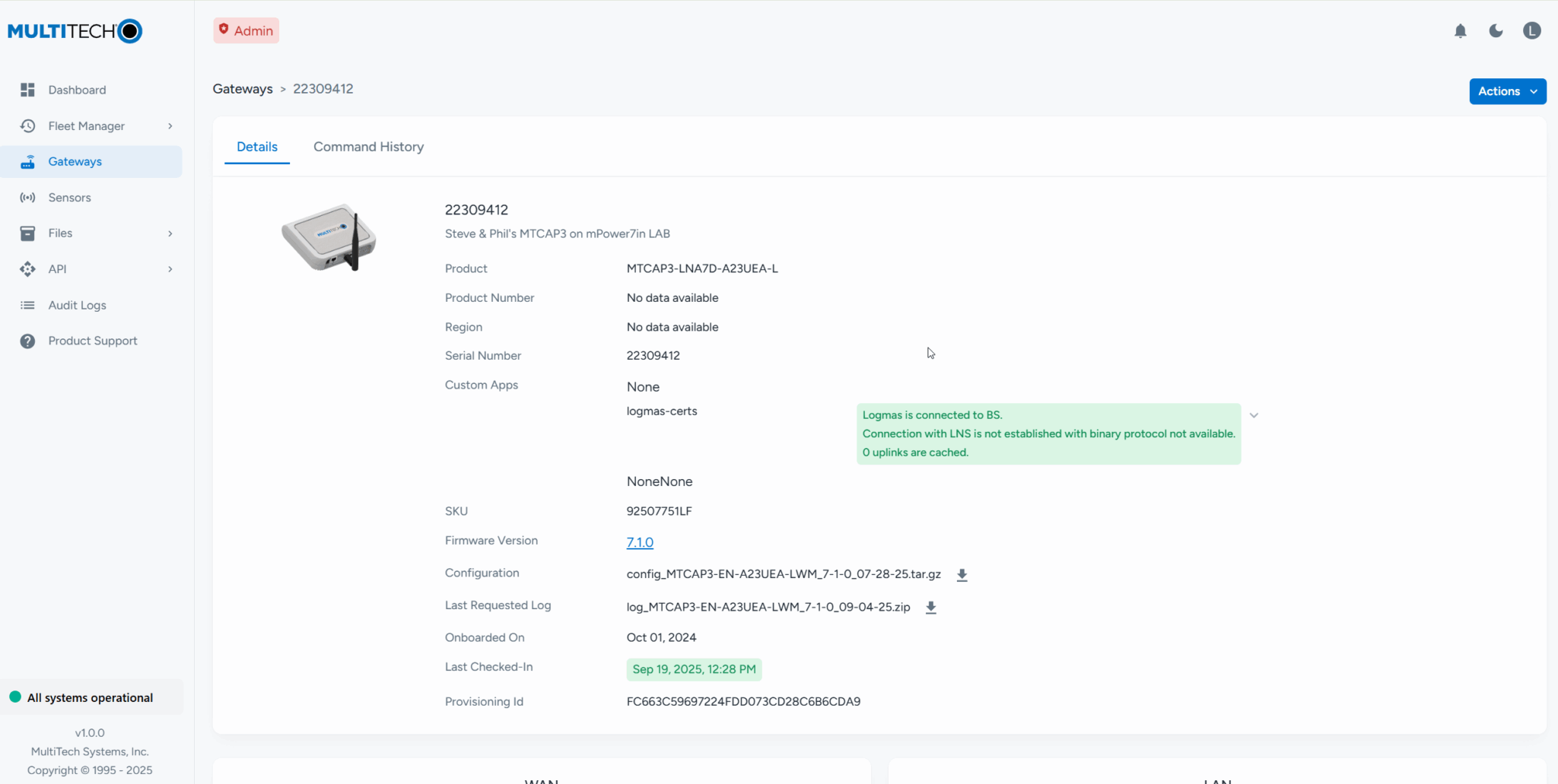
Once you are signed in to your MT Cloud Device Manager account, the system automatically onboards your device. A successfully onboarded Conduit® AP 300 displays similar to this example image.
Configure Device
Now that you’ve connected your device, explore what else you can do in MT Cloud Device Manager.
Configure the Device as a LoRa Packet Forwarder
- Go to Network Interfaces. Click Edit for the ETH0 interface.
- Select WAN in the Direction field under Network Interface ETH0.
- Under Mode, select DHCP Client.
- Click Submit.
-
Go to Administration > Access Configuration > HTTPS. Enable
HTTPS via WAN.
- Click Submit.
- Click Save and Apply.
To use a device with a cellular connection as a LoRa packet forwarder, follow these steps:
- Go to LoRaWAN > Network Settings under LoRa Mode and select PACKET FORWARDER in the Mode field. If Manual Configuration is showing, click Normal Configuration to switch.
-
Select a Network from the drop-down list under LoRaWAN Packet Forwarder Configuration > Network
Settings.
- Select the LoRa Channel Plan for your country or region (such as EU868 for
Europe) from the drop-down menu:
- IN865
- EU868
- US915
- AU915
- AS923-1
- AS923-2
- AS923-3
- AS923-4
- KR920
- RU864
- Click Submit then Save and Apply. Confirm that the Packet Forwarder is now running under Status.
- Add the device and any LoRaWAN end devices to the network you selected based on their specific system and instructions. You will need the Gateway EUI to do this. Show the LoRa Card Information and copy the Gateway EUI.
Reboot A Device Remotely
If you only have one device, use these steps to reboot the device remotely.
- Log in to MT Cloud Device Manager and select Gateways.
- On the Gateways page, select your device to open the device details page.
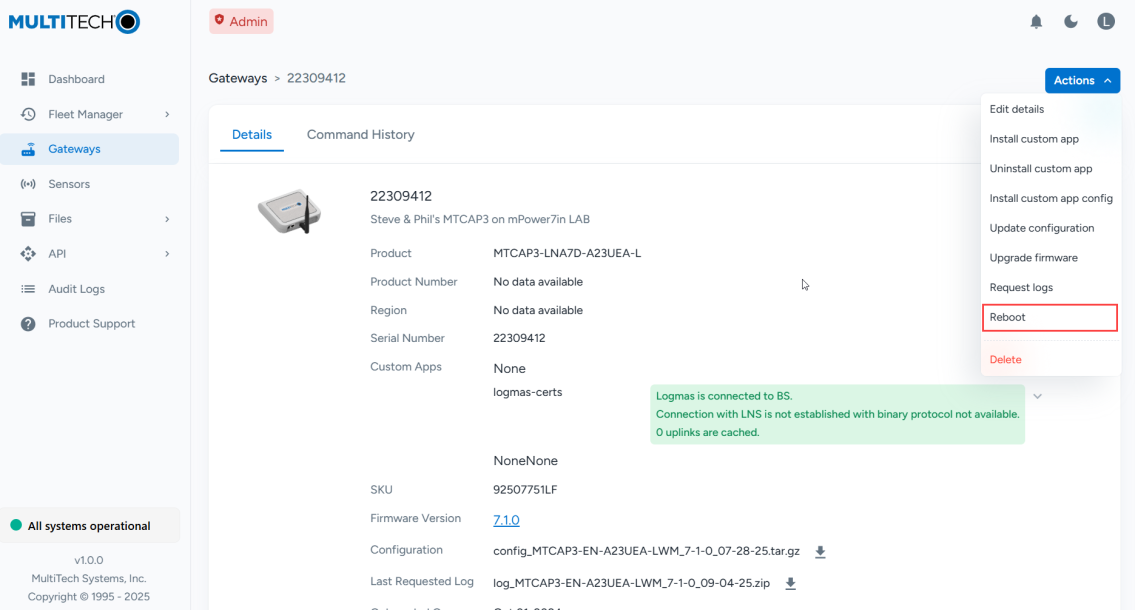
- Select Actions > Reboot.

- The next time the device checks in, MT Cloud Device Manager will deliver the reboot
command.Note: By default, the check-in interval is four hours. You can wait for the device to check in or speed up the process by power cycling it. To power cycle the device, remove the power cable for three seconds, then plug it back in.
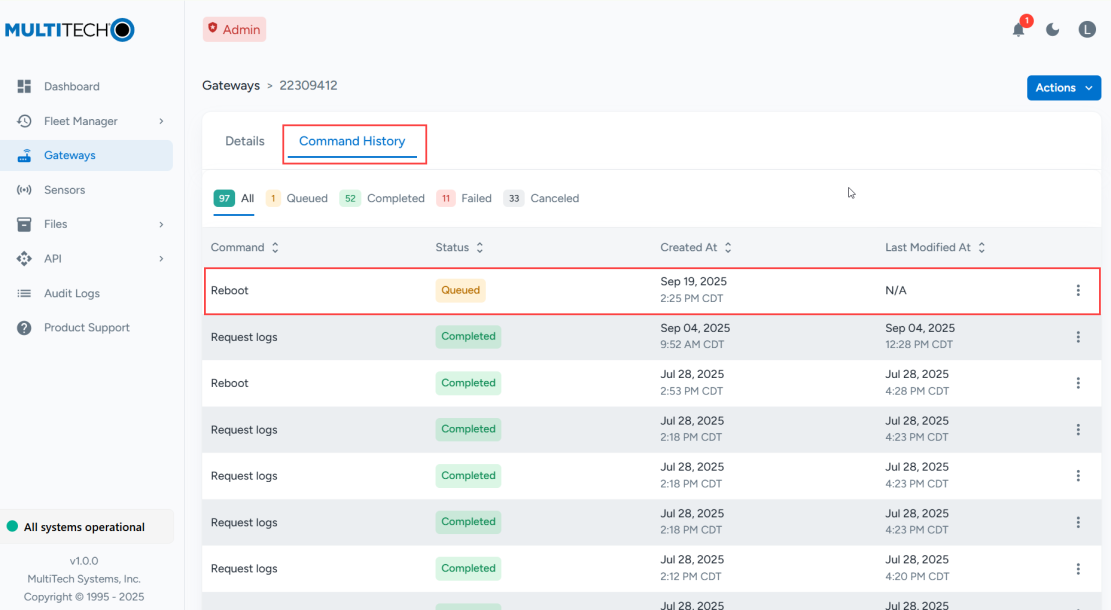
- Log in to MT Cloud Device Manager and confirm the status of the reboot command status is Completed.
Contact Support
Now that we’ve connected your device and sent it an example command via MT Cloud Device Manager, contact support for further assistance or to offer feedback on this process.
Other Documents
Additional documentation for the Conduit® AP 300 is available at https://multitech.com/all-products/cellular/cellular-gateways/conduit-ap-300-series/#documents.